
You just changed the wifi password of your Livebox, and thirty seconds later, nothing works anymore. The connected speaker is unresponsive, the surveillance camera is offline, and the thermostat shows an error. Changing the wifi key on an Orange box is a simple operation, but its consequences on all the devices in the home are rarely anticipated.
What really happens when you change the wifi key of the Livebox
Modifying the wifi security key is akin to changing the lock on your home network. Each connected device has the old password stored in its memory. As soon as the Livebox applies the new key, all these devices instantly lose their access.
A computer or smartphone will simply display a password prompt. You enter the new key, and it’s done. The problem arises with devices without a screen or keyboard: voice speakers, smart bulbs, smart plugs, IP cameras, thermostats, robot vacuums.
These objects each require a specific reconfiguration procedure. Some necessitate a complete reset, while others require you to go back through their mobile app. In a household equipped with several smart devices, getting everything back online can take much longer than the password change itself.
Before touching anything, take a few minutes to list all the devices connected to your network. You can view this list in your Livebox interface, at 192.168.1.1, under “Connected Devices”.
Change the Orange wifi password from the app or Livebox interface
Orange offers two pathways to change the wifi password of the Orange box, depending on whether you prefer to use your phone or a wired computer.
From the Orange and Me app
This is the most direct method for residential subscribers. Open the Orange and Me app (or MySosh for Sosh subscribers), then follow this path:
- Go to Your Livebox, then select Wifi
- Tap on Wifi Security Key, then on Customize your wifi key
- Enter your new key and confirm
The app also allows you to customize the name of the wifi network in the same place, which can be useful to distinguish your network from that of your neighbors.
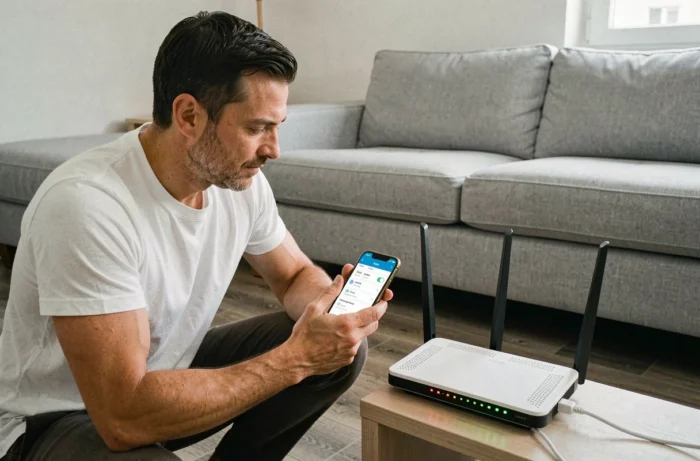
From the configuration interface (192.168.1.1)
This method works on all Livebox models, including Pro models. Connect your computer to the Livebox with an Ethernet cable before starting. This is a logical precaution: if you are connected via wifi and change the key, your computer will be immediately disconnected.
Open a browser, type 192.168.1.1 in the address bar, then log in. Go to the wifi section to modify the security key. Enter your new key, then click Confirm.
Reconnect devices without screens after changing the wifi key
You have confirmed your new key. Your phones and computers are easy to get back online: just select the network and enter the new password. The difficulty begins with everything else.
Speakers and voice assistants
A connected speaker (Google Home, Amazon Echo, HomePod) cannot ask you for a password. You need to open the associated app on your phone, access the device’s wifi settings, and enter the new key. Some models require a complete reset before you can reconfigure the wifi.
Cameras and smart devices
IP cameras and connected thermostats generally follow the same principle: you go through the manufacturer’s app to update the network credentials. Connected bulbs often require you to turn them off and on multiple times in a specific sequence to switch back to pairing mode.
The most troublesome case remains that of connected plugs and low-end smart sensors. Their configuration app is sometimes poorly translated, and the wifi reconnection procedure is not always clearly documented.
Guest network: a precaution for visitors
Do you regularly have friends or family who connect to your wifi? Instead of sharing your main key with them (and having to inform them of every change), activate the guest wifi network from the Livebox interface. This secondary network has its own password and isolates visitors from your personal devices.
Choosing a strong wifi key for the Livebox
Since you will be reconfiguring all your devices, you might as well choose a password that will last over time. The default key printed under the Livebox is long and random, but it is also visible to anyone who turns the box over.
A good wifi key combines several types of characters without following a word from the dictionary. Aim for a sufficient length so that the password is hard to guess, but keep it pronounceable so you can dictate it to a visitor if necessary.
- Mix uppercase letters, lowercase letters, numbers, and at least one special character
- Avoid personal information (date of birth, first name, address)
- Write down the new key in a safe place, out of reach of the router itself
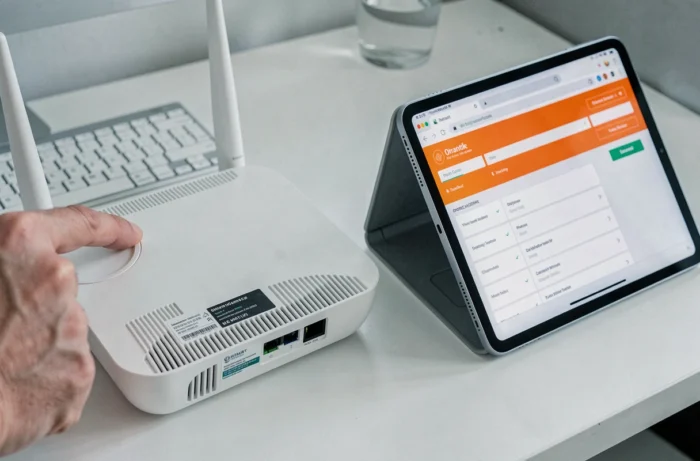
Change your wifi key at least once a year, or immediately if you suspect that an unauthorized device is using your connection. The best time to do this: a quiet weekend when you have time to reconnect each household object without rushing.